



The Complete Excel Course with AI Integration
Excel course for mechanical and electrical engineers
Mechanical and electrical engineers use Excel for calculation sheets, equipment lists and test data. The Complete Excel Course with AI Integration teaches Excel rather than engineering: this guide highlights skills to apply to calculation references and checks, drop-down inputs, sheet protection, part and rating lookups, test data charts, repeated checks with VBA and logger exports with Power Query.
Taught by Sagnik Bhattacharya and Virginia Thorn

What you will be able to do
At work, you will be able to:
- Build calculation sheets that distinguish inputs with cell styles, keep constants fixed with absolute references and use IF and AND to check results against limits.
- Use a drop-down to accept only permitted inputs, then protect formulas from being overwritten by protecting the sheet.
- Maintain equipment lists or bills of materials using XLOOKUP to retrieve part details, a two-way lookup to read ratings and SUMIFS to total each assembly.
- Display test readings with line charts and combo charts using two axes, then examine the spread of repeated readings in a histogram or box and whisker chart.
- Prepare a logger's CSV export in Power Query by correcting columns and data types and unpivoting separate channel columns into a long table.
- Create small VBA checking tools that visit rows in a loop, test values with If and IsNumeric, colour failures and report results with Debug.Print.
Projects
What you will build.
The course has 14 projects. These four matter most here.
-
Project 11
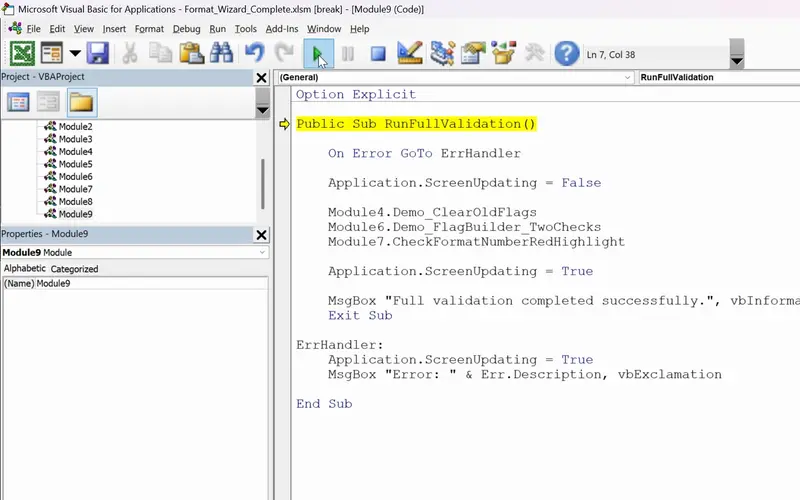
FormatWizard
One click that checks a whole sheet for you.
Adapt this introductory VBA tool for checking work: a loop reads rows, If and IsNumeric test their values, colour marks failures and the Immediate window displays results.
-
Project 04
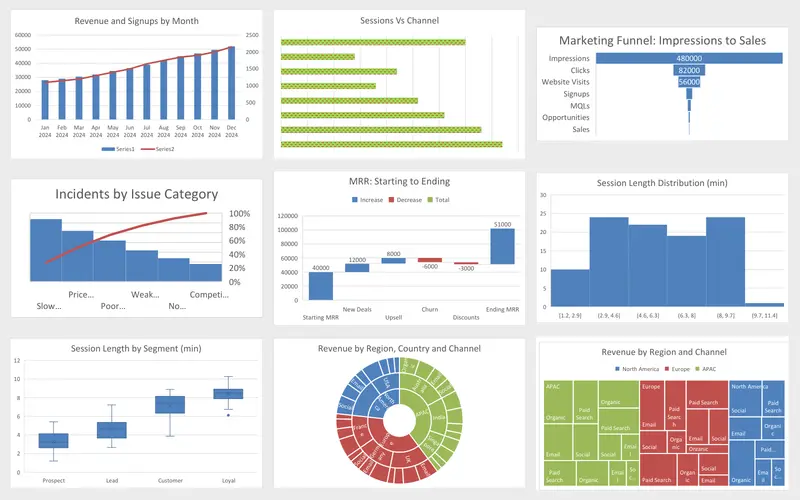
Marketing Engagement Dashboard
Nine charts, each picked for the question it answers.
Apply the chart choices to measurements: track a reading through time with a line, compare quantities on different scales with a combo and display repeated measurements in a histogram.
-
Project 06
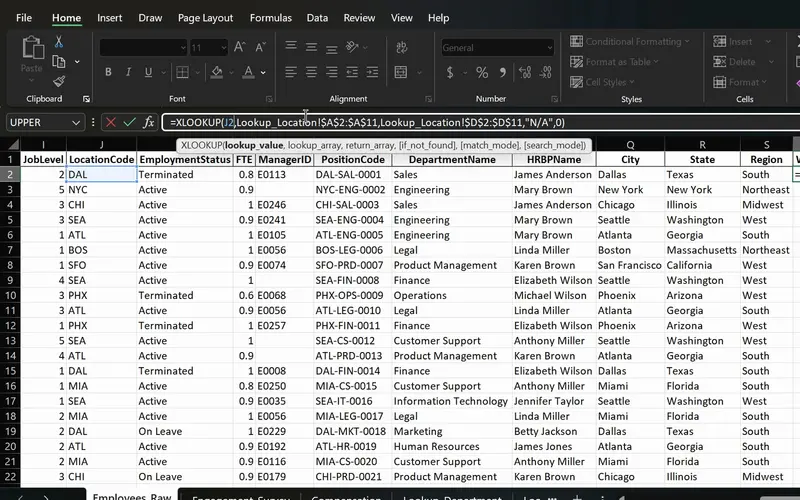
PeopleInsight HR workbook
Employee data joined across sheets with one formula.
Use the employee lookup approach to retrieve part details or ratings by code, including a two-way lookup that selects a value using its row and column.
-
Project 12
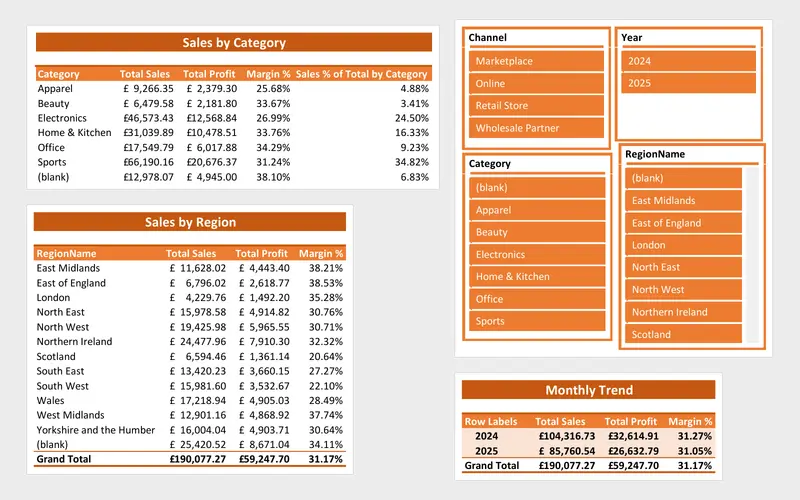
SalesFusion
A sales report that refreshes itself from a folder of files.
This guide selects just the Power Query cleaning and unpivot lessons. Apply the steps practised on sales files to a logger CSV: import it, set its data types and reshape it into a long table for analysis.
Lessons
The lessons that matter, in course order.
The Complete Excel Course with AI Integration has 186 lessons. This page picks out 54 of them, 4 h 23 min of video. Each lesson keeps its number in the course.
Where to start
Lesson 6 Number formatting in Excel
If entering data and navigating a worksheet are familiar, start with Lesson 6 to work on the formats, references and errors behind a calculation sheet. Start at Lesson 1 if Excel is new to you. Readers comfortable with formulas, IF and XLOOKUP can move to Lesson 136 for the start of macros and VBA, or Lesson 154 to work with logger exports through Power Query.
54 of 186 lessons · 4 h 23 min
01 Microsoft Excel fundamentals: building a foundation from scratch A personal budget provides the practice for calculation sheet foundations. Work with arithmetic and percentages, choose number formats with suitable decimal places, distinguish inputs through cell styles, reuse constants with absolute references and handle formula errors with IFERROR.
- 6 Start here Number formatting in Excel Currency, date and percentage formats for a budget 5 min
- 7 Cell formatting in Excel AutoFit column width, the #### error and cell styles 6 min
- 8 Basic maths in Excel Add, subtract, multiply and divide with formulas 3 min
- 9 SUM and AutoSum in Excel Total income, expenses and savings with MAX 6 min
- 10 Relative vs absolute references in Excel Dollar signs and mixed references 3 min
- 11 Calculating percentages in Excel Each expense as a percentage of income 2 min
- 12 Common Excel errors and how to fix them DIV0, NAME, VALUE errors and IFERROR 4 min
04 Essential formulas and functions (IF, SUMIF and more) Practise on sales data, then apply the functions to engineering checks and totals: TRUE and FALSE comparisons, IF and IFS for OK or not results, AND and OR for checks between limits, COUNT for readings and SUMIF or SUMIFS for assembly or board totals.
- 28 Logical functions in Excel TRUE and FALSE comparisons for beginners 5 min
- 29 The IF function in Excel Pass or fail results with a single condition 3 min
- 30 IF function practice in Excel Categorise sales data with IF formulas 6 min
- 31 Nested IF and IFS in Excel Customer value tiers with nested IF 6 min
- 32 Nested IF and IFS in Excel Sales performance labels with the IFS function 5 min
- 33 AND and OR with IF in Excel Flag high-value deals with multiple conditions 8 min
- 34 SUM, COUNT and COUNTA in Excel SUM with FILTER and counting numbers with COUNT 7 min
- 35 SUM, COUNT and COUNTA in Excel COUNTA, unique counts and completeness checks 4 min
- 36 SUMIF and COUNTIF in Excel Conditional sum and count with one criterion 8 min
- 37 SUMIFS and COUNTIFS in Excel Sum and count with multiple criteria 7 min
05 Text functions and data validation (enhancing data quality) Control entries such as material grades and cable types with data validation: a drop-down list limits the input to permitted values.
- 45 Data validation in Excel Create drop-down lists for consistent data entry 4 min
06 Data visualisation: charts and graphs Learn how to select a chart and work with column charts and line charts, including a line that follows a reading through time.
- 48 Choosing the right Excel chart Column, line, pie, combo and modern chart types 4 min
- 49 Column charts in Excel Insert, format and label a column chart 5 min
- 50 Line charts in Excel Show trends over time with a line chart 4 min
06 Data visualisation: charts and graphs Put quantities with different scales together in a combo chart using a secondary axis, and format charts with colours, labels and titles.
- 52 Combo charts in Excel Column and line chart with a secondary axis 4 min
- 53 Formatting charts in Excel Titles, data labels, colours and chart styles 7 min
06 Data visualisation: charts and graphs Examine how repeated measurements are spread using histograms and box and whisker charts. Treemap and sunburst charts are also covered.
- 56 Histogram, box and whisker, treemap and sunburst Advanced Excel chart types 6 min
08 Advanced Excel functions: lookups, text and arrays Employee data supplies the lookup practice for techniques applicable to parts and ratings: VLOOKUP, XLOOKUP including a two-way lookup, and INDEX and MATCH. Use IFERROR when a code has no entry in the table.
- 67 Lookup functions in Excel The PeopleInsight HR dataset and why lookups matter 2 min
- 68 VLOOKUP in Excel Find employee data across sheets with exact match 4 min
- 69 XLOOKUP in Excel Exact match, if not found and two-way lookup 6 min
- 70 IFERROR in Excel Handle lookup errors in VLOOKUP and XLOOKUP formulas 3 min
- 71 INDEX and MATCH in Excel A flexible alternative to VLOOKUP 6 min
09 Project: task automation with data validation and forms Prevent accidental changes to a calculation that has been checked by locking cells and protecting the worksheet.
- 86 Protect a sheet and lock cells in Excel Secure the TaskFlow tracker workbook 4 min
14 VBA and macros in Excel: FormatWizard FormatWizard checks a sales sheet with a structure suited to small engineering tools. It covers recording macros, using the VBA editor, variables, writing a function, For Next loops, If statements, IsNumeric, RGB colours, Debug.Print and error handling.
- 136 Excel macros and VBA for beginners What macros are, the FormatWizard project 3 min
- 137 Record your first Excel macro Name, run and use absolute references 6 min
- 138 Relative references in Excel macros Make recorded macros dynamic 4 min
- 139 Developer Tab in Excel Run macros from a button and the quick access toolbar 4 min
- 140 Save macros in Excel Macro-enabled workbooks and the XLSM file format 3 min
- 141 The VBA Editor in Excel Open it with Alt+F11 and learn the workspace 4 min
- 142 Working in the VBA editor Macro security, trust settings, switching to Excel 6 min
- 143 Your first VBA code Modules, worksheets, rows, columns and formatting 4 min
- 144 VBA variables and data types Sub vs function for Excel beginners 6 min
- 145 VBA functions in Excel Build GetLastUsedRow with find and exit function 5 min
- 146 Clear old flags with VBA Reset messages and fill colours with if statements 5 min
- 147 For Next loop in VBA Flag missing region values in Excel 4 min
- 148 VBA If Else and loops Check missing sales data and build a FlagText message 5 min
- 149 Highlight cells with VBA Interior.Color and RGB for missing data 5 min
- 150 IsNumeric in VBA Validate unit price and amount data types in Excel 7 min
- 151 Debugging VBA for beginners Debug.Print and the Immediate window 5 min
- 152 Complete Excel validation macro One VBA subroutine with an error handler 3 min
15 SalesFusion: advanced data tools and a Power Query modelling system Sales file imports demonstrate a Power Query process also applicable to logger CSVs. Learn the ETL idea, import a CSV, remove and rename columns, clean text, correct data types and add fields for years and months.
- 154 Introduction to Power Query in Excel The ETL workflow explained 5 min
- 155 Import a CSV with Power Query Get data from text and transform data 2 min
- 156 Clean columns in Power Query Remove and rename columns for modelling 5 min
- 157 Clean text in Power Query Trim, clean, replace values and fix text case 6 min
- 158 Data types in Power Query Fix date, whole number, decimal and text types 7 min
- 159 Date columns in Power Query Add year, month and year-month fields for reports 7 min
15 SalesFusion: advanced data tools and a Power Query modelling system Reshape wide data with unpivot. For a logger export, separate channel columns become rows in a long table that can feed a PivotTable or chart.
- 173 Unpivot columns in Power Query Turn wide month columns into a long table 8 min
Instructors
Who teaches it.

Instructor, Excel with AI
Virginia Thorn
Emmy Award winner. Teaches Excel with AI at Coding Liquids.
Questions
Asked before starting.
Which Excel course can mechanical and electrical engineers use for their spreadsheet work?
The Complete Excel Course with AI Integration from Coding Liquids covers Excel skills used in engineering spreadsheets. These include clearly marked calculation inputs, absolute references, pass or fail checks, lookups for parts and ratings, line and combo charts for test data, repeated checks with VBA and Power Query for logger exports. This page selects 54 lessons, taking 4 hours 23 minutes.
Will mechanical and electrical engineers learn engineering calculations, Solver or regression in this course?
The Complete Excel Course with AI Integration covers Excel, but does not teach engineering calculation methods, Goal Seek, Solver, regression or numerical methods. You supply the formulas for calculations such as pump duty or voltage drop. The course teaches how to support those formulas with cell styles that identify inputs, absolute references for constants, limit checks using IF and AND, IFERROR and sheet protection.
Can mechanical and electrical engineers use the course to chart test and measurement data?
Yes. In The Complete Excel Course with AI Integration, line charts track readings through time, while combo charts use a secondary axis to compare quantities on different scales. The lessons also cover titles and data labels, plus histograms and box and whisker charts to display the spread of repeated measurements. Power Query provides the import and cleaning steps for a logger CSV before charting.
Does the VBA teaching let mechanical and electrical engineers build small tools of their own?
Yes, for small tools that check sheets. FormatWizard in The Complete Excel Course with AI Integration progresses from recording macros to writing VBA, covering variables and data types, a function to find the last used row, For Next loops, If statements and IsNumeric checks. It also teaches RGB cell colours, debugging with Debug.Print and an error handler. The example checks sales data; its structure also applies to calculation and test sheets.
How can mechanical and electrical engineers maintain a bill of materials or cable schedule in Excel?
Keep the records in a table and retrieve details through lookups. The Complete Excel Course with AI Integration uses HR and sales examples to teach XLOOKUP and INDEX and MATCH for fetching data by code, which can be part details or cable ratings. A two-way lookup selects a rating at a row and column intersection, IFERROR flags missing codes and SUMIFS totals quantities or loads for an assembly or board.
Excel with AI
See the whole course.
The Complete Excel Course with AI Integration: 16 hours of video in 186 lessons, built around 14 projects, with lifetime access, a Certificate of Completion and a 14-day money-back guarantee.
The same course
For another job, level or topic.
By job
Finance and accounting
- Accountants and finance teams
- Bookkeepers and accounts assistants
- FP&A and budget analysts
- Auditors and fraud examiners
- Payroll administrators
- Tax accountants and advisers
- Banking professionals
- Cost and management accountants
- Financial controllers
- Credit control and receivables teams
- Accounts payable teams
- Financial planners and advisers
- Credit analysts and loan officers
- Insurance underwriters
- Insurance claims handlers
- Reconciliation analysts
- Treasury analysts
- Medical billing and coding specialists
- Fund accountants
- Billing administrators
- AML and KYC analysts
- Actuarial analysts
- Insurance agents and brokers
HR and office administration
Operations and supply chain
- Operations and project managers
- Procurement and purchasing officers
- Logistics coordinators
- Inventory controllers and storekeepers
- Supply chain analysts
- Warehouse managers and supervisors
- PMO analysts
- Import and export coordinators
- Production planners
- Demand planners
- Fleet and transport managers
- Apparel merchandisers