
The Complete Excel Course with AI Integration
Excel course for operations and project managers
For operations teams and project managers who run trackers, schedules and recurring reports in Excel. The Complete Excel Course with AI Integration has a project for exactly that: TaskFlow, a task tracker with drop-down lists, overdue highlights, a Gantt-style timeline and sheet protection. This page picks it out, with the sections on keeping lists in order and on automating the work that repeats.
Taught by Sagnik Bhattacharya and Virginia Thorn


What you will be able to do
At work, you will be able to:
- Build a task tracker with drop-down lists for status and priority, highlights for overdue and completed tasks, and a count of the working days left to each deadline.
- Draw a Gantt-style timeline with conditional formatting, and show priority and progress with data bars and icon sets.
- Protect a shared tracker: lock cells and protect the sheet against accidental edits.
- Keep a long list in order with Excel Tables, sorting on several levels and filters, and summarise it with PivotTables.
- Record a macro, then write VBA that checks a whole sheet in one click.
- Build Power Automate Desktop flows with conditions, approvals and loops that read and write Excel for you.
Projects
What you will build.
The course has 14 projects. These three matter most here.
-
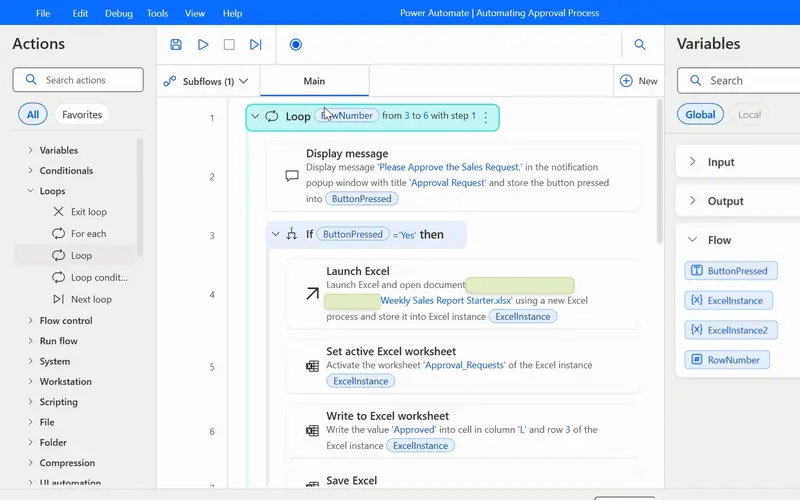
Project 13
AutoFlow
The weekly report routine, run by a flow instead of by you.
A routine that runs without you: the flow opens the workbook, reads the rows, asks for approval and writes the result.
-
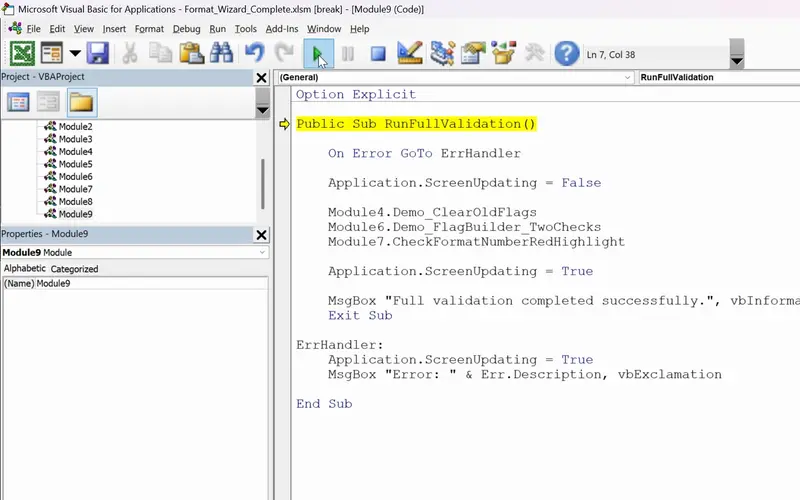
Project 11
FormatWizard
One click that checks a whole sheet for you.
A check you run with one click instead of reading down a sheet by eye.
-
Project 07
TaskFlow
The tracker itself: who does what by when, what is overdue and how many working days are left, drawn as a timeline and protected against accidental edits.
Lessons
The lessons that matter, in course order.
The Complete Excel Course with AI Integration has 186 lessons. This page picks out 57 of them, 4 h 31 min of video. Each lesson keeps its number in the course.
Where to start
Lesson 19 Excel tables
Begin at Lesson 19 if you can already enter data and write a simple formula. New to Excel? Begin at Lesson 1. If your lists are already in tables, go to Lesson 79, where TaskFlow begins.
57 of 186 lessons · 4 h 31 min
03 Managing data in Excel: sort, filter and tables (Dunder Michael Paper employee database) Lists under control: Excel Tables, sorting on several levels, filters, cleaning data, removing duplicates, freezing the header row and printing a list neatly.
- 19 Start here Excel tables Create and format a table, structured references and total row 8 min
- 20 Sorting data in Excel Single and multi-level sort on an employee database 6 min
- 21 Filtering data in Excel AutoFilter, text and number filters on employee data 10 min
- 22 Cleaning data in Excel TRIM, Paste Special values and Find and Replace 13 min
- 23 Remove duplicates in Excel Find and delete duplicate rows in an employee list 6 min
- 24 Flash Fill in Excel Split first and last names automatically 3 min
- 25 Text to Columns in Excel Split data by delimiter into separate columns 6 min
- 26 Freeze panes in Excel Lock header rows and columns while scrolling 3 min
- 27 Printing in Excel Print area, page orientation, scaling and page layout 6 min
07 PivotTables and PivotCharts: data analysis made easy PivotTables, slicers and PivotCharts, to summarise a tracker or a log. The lessons use sales data; the steps are the same for any table.
- 57 PivotTables 101 in Excel What a PivotTable does and the sales dataset 5 min
- 58 Preparing data for PivotTables Clean data with TRIM, PROPER, find and replace 5 min
- 59 Create your first PivotTable in Excel Insert a PivotTable from a sales table 1 min
- 60 PivotTable fields in Excel Rows, values, columns and Value Field Settings 2 min
- 61 PivotTable summaries in Excel Sales by product category and grouping by date 4 min
- 62 Slicers in Excel Filter PivotTables with clickable buttons 3 min
- 63 PivotCharts in Excel Create interactive charts from a PivotTable 5 min
- 64 PivotTable design Tab Report layouts, PivotTable styles and number formats 5 min
- 65 Refresh a PivotTable in Excel Update pivots when source data changes 2 min
- 66 Excel Ninja Challenge PivotTable sales by region, category and monthly trend 1 min
09 Project: task automation with data validation and forms TaskFlow from an empty sheet to a finished tracker: layout, drop-down lists, conditional formatting for overdue work, the Gantt-style timeline, data bars and icon sets, days remaining with NETWORKDAYS, sheet protection and a stress test with sample data.
- 79 TaskFlow project tracker in Excel Overview of the task tracker dashboard 4 min
- 80 Designing a task tracker in Excel TaskFlow layout, columns and headers 5 min
- 81 Data validation in Excel Status and priority drop-down lists in TaskFlow 8 min
- 82 Conditional formatting in Excel Highlight overdue and completed tasks 8 min
- 83 Gantt chart in Excel Build a project timeline with conditional formatting 6 min
- 84 Data bars and icon sets in Excel Visual priority and progress in TaskFlow 6 min
- 85 NETWORKDAYS and TODAY in Excel Days remaining and task deadlines in TaskFlow 5 min
- 86 Protect a sheet and lock cells in Excel Secure the TaskFlow tracker workbook 4 min
- 87 Testing an Excel task tracker Stress test TaskFlow with sample data 3 min
14 VBA and macros in Excel: FormatWizard FormatWizard: record a macro, run it from a button, then write VBA with variables, If statements and loops that checks a sheet and highlights every problem.
- 136 Excel macros and VBA for beginners What macros are, the FormatWizard project 3 min
- 137 Record your first Excel macro Name, run and use absolute references 6 min
- 138 Relative references in Excel macros Make recorded macros dynamic 4 min
- 139 Developer Tab in Excel Run macros from a button and the quick access toolbar 4 min
- 140 Save macros in Excel Macro-enabled workbooks and the XLSM file format 3 min
- 141 The VBA Editor in Excel Open it with Alt+F11 and learn the workspace 4 min
- 142 Working in the VBA editor Macro security, trust settings, switching to Excel 6 min
- 143 Your first VBA code Modules, worksheets, rows, columns and formatting 4 min
- 144 VBA variables and data types Sub vs function for Excel beginners 6 min
- 145 VBA functions in Excel Build GetLastUsedRow with find and exit function 5 min
- 146 Clear old flags with VBA Reset messages and fill colours with if statements 5 min
- 147 For Next loop in VBA Flag missing region values in Excel 4 min
- 148 VBA If Else and loops Check missing sales data and build a FlagText message 5 min
- 149 Highlight cells with VBA Interior.Color and RGB for missing data 5 min
- 150 IsNumeric in VBA Validate unit price and amount data types in Excel 7 min
- 151 Debugging VBA for beginners Debug.Print and the Immediate window 5 min
- 152 Complete Excel validation macro One VBA subroutine with an error handler 3 min
16 Power Automate: weekly sales report automation AutoFlow: Power Automate Desktop flows that open Excel, read rows, loop through them, ask for approval and write the answer back, built from a template, with the recorder or from scratch.
- 174 Power Automate Desktop for Excel Set up AutoFlow and your first automation 3 min
- 175 Your first Power Automate flow Flows, triggers, actions and Display message 3 min
- 176 Connect Excel to Power Automate Launch Excel and the Excel instance variable 3 min
- 177 Copilot Vision with Power Automate AI-guided help while you build a flow 2 min
- 178 Read data from Excel with Power Automate Read from worksheet and close Excel 4 min
- 179 Power Automate templates Search and replace Excel values template walkthrough 7 min
- 180 Run Power Automate flows From a desktop shortcut and a run URL 3 min
- 181 Power Automate Desktop recorder Record desktop and browser actions into a flow 4 min
- 182 Action properties in Power Automate UI elements, variables and wait settings 4 min
- 183 Approval flow in Power Automate Desktop If conditions and message box buttons 9 min
- 184 Loops in Power Automate Desktop Loop and For each actions for Excel rows 5 min
- 185 Power Automate Ninja Challenge Flag onboarded rows with loop, read, if, write 5 min
Questions
Asked before starting.
Is there an Excel course for project managers and operations teams?
Yes. The Complete Excel Course with AI Integration from Coding Liquids has a project built for this work: TaskFlow, a tracker with status and priority lists, overdue highlights and a Gantt-style timeline, and beside it FormatWizard and AutoFlow for the checks and reports that repeat. Those lessons come to 57 lessons, 4 hours 31 minutes of the course's 16 hours.
Can I build a Gantt chart in Excel with this course?
Yes. The TaskFlow section of The Complete Excel Course with AI Integration has a lesson on building a project timeline as a Gantt chart with conditional formatting, inside a tracker that also has status and priority lists, overdue highlights and a count of the working days left.
Does it replace project management software?
No. The Complete Excel Course with AI Integration teaches Excel. TaskFlow suits a team that plans in a spreadsheet; the course does not teach a project management tool or a planning method.
How do I stop a shared tracker being broken by mistake?
The TaskFlow section of The Complete Excel Course with AI Integration covers the Excel side: drop-down lists keep status and priority to a fixed set of values, locked cells and a protected sheet keep the formulas from being typed over, and a stress test with sample data comes before the tracker is used.
Excel with AI
See the whole course.
The Complete Excel Course with AI Integration: 16 hours of video in 186 lessons, built around 14 projects, with lifetime access, a Certificate of Completion and a 14-day money-back guarantee.
The same course