



The Complete Excel Course with AI Integration
Excel course for ERP and SAP consultants
For ERP and SAP consultants, and data migration analysts, who prepare and check load files in Excel. This page picks out the parts of The Complete Excel Course with AI Integration that migration work uses: list cleansing, text functions and drop-down lists for templates, lookups for code mapping, conditional totals for reconciliation, VBA that checks a load file, and Power Query for cleansing steps that run again on each extract.
Taught by Sagnik Bhattacharya and Virginia Thorn

What you will be able to do
At work, you will be able to:
- Cleanse master data before a load: trim spaces, replace values in bulk, put text into one case and remove duplicate records.
- Map old codes to new ones with XLOOKUP or a Power Query merge, and catch unmapped codes with IFERROR or the if-not-found value.
- Keep a migration template to the rules with drop-down lists for the fields that take a fixed set of values.
- Reconcile a load with its source: record counts with COUNTA, totals with SUMIFS, and Group By summaries in Power Query.
- Write a VBA check that walks down a load file, flags blanks and non-numeric amounts and colours the cells that fail.
- Build cleansing steps in Power Query that run again, unchanged, on the next extract.
Projects
What you will build.
The course has 14 projects. These four matter most here.
-
Project 12
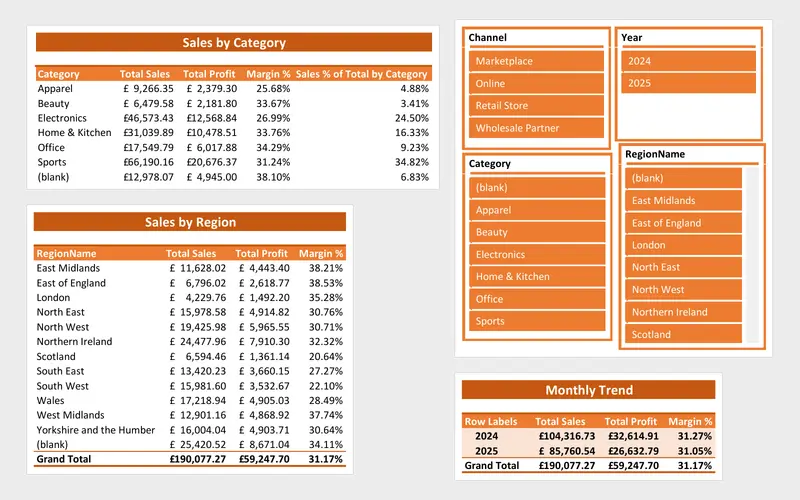
SalesFusion
A sales report that refreshes itself from a folder of files.
Repeatable cleansing for a migration: each step kept in Power Query, legacy codes matched to new ones with a left-join merge, and Group By totals to reconcile a load against its source.
-
Project 06
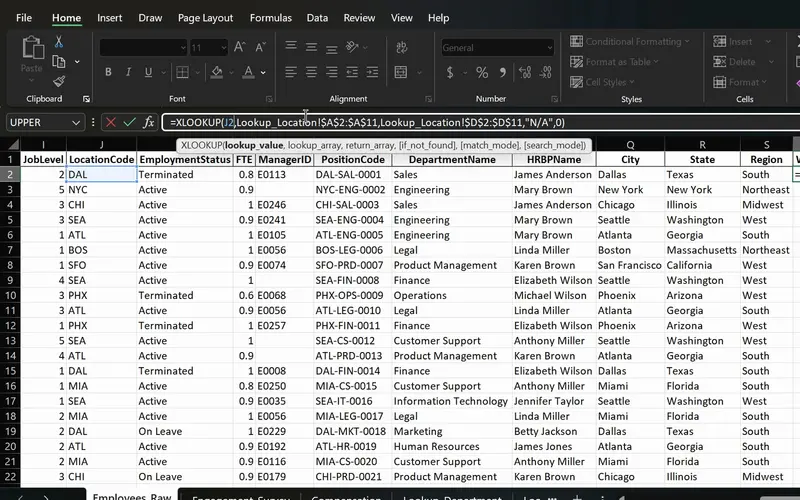
PeopleInsight HR workbook
Employee data joined across sheets with one formula.
Old codes mapped to new ones with XLOOKUP or INDEX and MATCH, unmapped codes caught by the if-not-found value, and code parts split out with LEFT, RIGHT and MID.
-
Project 11
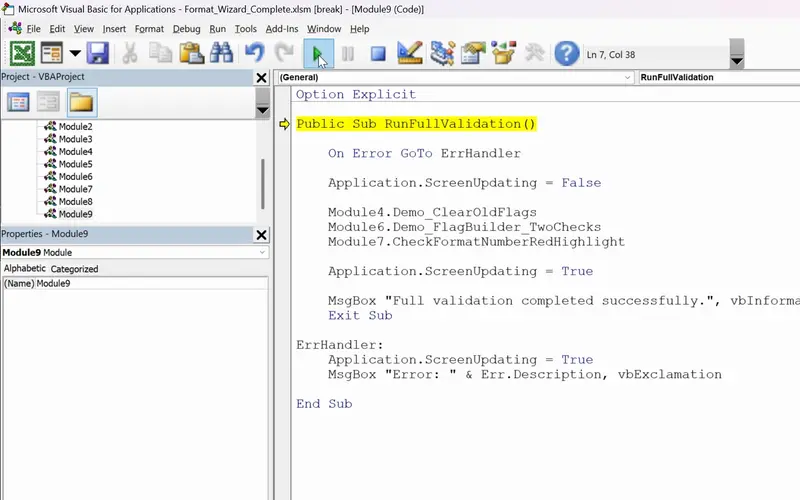
FormatWizard
One click that checks a whole sheet for you.
Checks on a load file before it goes in, as the project runs them on a sales sheet: a macro that walks down the rows, flags blanks in required fields, tests that amounts are numbers and colours the cells that fail.
-
Project 02
Dunder Michael Paper Company employee database
Master data cleansing on a small scale: stray spaces trimmed, values replaced in bulk, duplicate records removed and fields split, practised on an employee list.
Lessons
The lessons that matter, in course order.
The Complete Excel Course with AI Integration has 186 lessons. This page picks out 65 of them, 5 h 40 min of video. Each lesson keeps its number in the course.
Where to start
Lesson 19 Excel tables
Begin at Lesson 19 if you already work with extracts in Excel. New to Excel? Begin at Lesson 1. If cleansing and lookups are routine, go to Lesson 136 for the VBA checks and then Power Query. The section that opens this path, Managing data in Excel, comes free by email with its practice files.
65 of 186 lessons · 5 h 40 min
03 Managing data in Excel: sort, filter and tables (Dunder Michael Paper employee database) Master data cleansed before a load: Excel Tables, sorting and filtering to find bad records, TRIM, Paste Special values and Find and Replace, Remove Duplicates for repeated vendors or materials, and Flash Fill and Text to Columns to split fields.
- 19 Start here Excel tables Create and format a table, structured references and total row 8 min
- 20 Sorting data in Excel Single and multi-level sort on an employee database 6 min
- 21 Filtering data in Excel AutoFilter, text and number filters on employee data 10 min
- 22 Cleaning data in Excel TRIM, Paste Special values and Find and Replace 13 min
- 23 Remove duplicates in Excel Find and delete duplicate rows in an employee list 6 min
- 24 Flash Fill in Excel Split first and last names automatically 3 min
- 25 Text to Columns in Excel Split data by delimiter into separate columns 6 min
- 26 Freeze panes in Excel Lock header rows and columns while scrolling 3 min
- 27 Printing in Excel Print area, page orientation, scaling and page layout 6 min
04 Essential formulas and functions (IF, SUMIF and more) Reconciliation counts: COUNT and COUNTA for record counts and blanks, unique counts for keys, and SUMIF, COUNTIF, SUMIFS and COUNTIFS to total the source and the load by a key such as plant or category and compare them.
- 34 SUM, COUNT and COUNTA in Excel SUM with FILTER and counting numbers with COUNT 7 min
- 35 SUM, COUNT and COUNTA in Excel COUNTA, unique counts and completeness checks 4 min
- 36 SUMIF and COUNTIF in Excel Conditional sum and count with one criterion 8 min
- 37 SUMIFS and COUNTIFS in Excel Sum and count with multiple criteria 7 min
05 Text functions and data validation (enhancing data quality) Load templates kept to the rules: CONCAT and TEXTJOIN to build keys, UPPER, TRIM and PROPER to put text into one form, SUBSTITUTE to swap characters, Text to Columns, and drop-down lists (data validation) so a field takes only allowed values.
- 41 CONCAT, the & operator and TEXTJOIN in Excel Combine text from multiple cells 6 min
- 42 TRIM, UPPER, LOWER and PROPER in Excel Clean messy text and fix capitalisation 6 min
- 43 FIND, SEARCH and SUBSTITUTE in Excel Locate and replace text with formulas 5 min
- 44 Text to Columns wizard in Excel Split a column by a comma delimiter 4 min
- 45 Data validation in Excel Create drop-down lists for consistent data entry 4 min
- 46 Ninja Challenge: problem Clean messy data with text functions and validation 4 min
- 47 Ninja Challenge: solution PROPER, Text to Columns and drop-down lists 7 min
08 Advanced Excel functions: lookups, text and arrays Code mapping: VLOOKUP, XLOOKUP and INDEX and MATCH against a mapping table, IFERROR and the if-not-found value for codes with no match, LEFT, RIGHT and MID for structured codes, and UNIQUE, FILTER and SORT for the distinct codes or the unmapped rows. The lessons use an HR dataset.
- 67 Lookup functions in Excel The PeopleInsight HR dataset and why lookups matter 2 min
- 68 VLOOKUP in Excel Find employee data across sheets with exact match 4 min
- 69 XLOOKUP in Excel Exact match, if not found and two-way lookup 6 min
- 70 IFERROR in Excel Handle lookup errors in VLOOKUP and XLOOKUP formulas 3 min
- 71 INDEX and MATCH in Excel A flexible alternative to VLOOKUP 6 min
- 72 CONCAT and TEXTJOIN in Excel Combine employee names and text with a delimiter 3 min
- 73 LEFT, RIGHT and MID in Excel Extract parts of a text code like DAL-SAL-0001 7 min
- 74 TODAY, EOMONTH and NETWORKDAYS in Excel Date calculations for HR data 5 min
- 75 UNIQUE function in Excel Extract a distinct list with dynamic arrays 6 min
- 76 FILTER function in Excel Dynamic array filtering with AND and OR criteria 5 min
- 77 SORT and SORTBY in Excel Sort data dynamically with formulas 4 min
- 78 Excel Ninja Challenge XLOOKUP, totals and text concatenation lookup challenge 3 min
14 VBA and macros in Excel: FormatWizard FormatWizard: record macros, then write VBA that loops down a sheet, flags missing values, tests data types with IsNumeric, colours problem cells and runs with an error handler, the kind of check a load file needs. The lessons check sales data.
- 136 Excel macros and VBA for beginners What macros are, the FormatWizard project 3 min
- 137 Record your first Excel macro Name, run and use absolute references 6 min
- 138 Relative references in Excel macros Make recorded macros dynamic 4 min
- 139 Developer Tab in Excel Run macros from a button and the quick access toolbar 4 min
- 140 Save macros in Excel Macro-enabled workbooks and the XLSM file format 3 min
- 141 The VBA Editor in Excel Open it with Alt+F11 and learn the workspace 4 min
- 142 Working in the VBA editor Macro security, trust settings, switching to Excel 6 min
- 143 Your first VBA code Modules, worksheets, rows, columns and formatting 4 min
- 144 VBA variables and data types Sub vs function for Excel beginners 6 min
- 145 VBA functions in Excel Build GetLastUsedRow with find and exit function 5 min
- 146 Clear old flags with VBA Reset messages and fill colours with if statements 5 min
- 147 For Next loop in VBA Flag missing region values in Excel 4 min
- 148 VBA If Else and loops Check missing sales data and build a FlagText message 5 min
- 149 Highlight cells with VBA Interior.Color and RGB for missing data 5 min
- 150 IsNumeric in VBA Validate unit price and amount data types in Excel 7 min
- 151 Debugging VBA for beginners Debug.Print and the Immediate window 5 min
- 152 Complete Excel validation macro One VBA subroutine with an error handler 3 min
15 SalesFusion: advanced data tools and a Power Query modelling system Power Query up to a finished fact table: import CSV extracts, clean columns and text, fix data types, add conditional columns, Group By to summarise and validate, merge queries as a left join to map codes, reuse a pipeline, append periods and combine a folder of files. The lessons use sales files.
- 153 SalesFusion Power Query project Excel ETL pipeline and data model overview 5 min
- 154 Introduction to Power Query in Excel The ETL workflow explained 5 min
- 155 Import a CSV with Power Query Get data from text and transform data 2 min
- 156 Clean columns in Power Query Remove and rename columns for modelling 5 min
- 157 Clean text in Power Query Trim, clean, replace values and fix text case 6 min
- 158 Data types in Power Query Fix date, whole number, decimal and text types 7 min
- 159 Date columns in Power Query Add year, month and year-month fields for reports 7 min
- 160 Business logic in Power Query Custom and conditional columns for profitability 6 min
- 161 Group By in Power Query Summarise sales by month and region to validate data 5 min
- 162 Close and Load in Power Query Connection only, table or Data Model 5 min
- 163 Merge queries in Power Query Look up product and region names with a left join 5 min
- 164 Reuse a Power Query pipeline Duplicate queries for a new year of sales data 5 min
- 165 Append queries in Power Query Combine 2024 and 2025 sales tables 3 min
- 166 From Folder in Power Query Combine every sales file in a folder automatically 9 min
- 167 From Folder automation in Power Query Profit metrics and fiscal year columns 7 min
- 168 Build a sales fact table in Power Query Merge lookups and append history 6 min
Instructors
Who teaches it.

Instructor, Excel with AI
Virginia Thorn
Emmy Award winner. Teaches Excel with AI at Coding Liquids.
Questions
Asked before starting.
Is there an Excel course for ERP and SAP consultants?
Yes. The Complete Excel Course with AI Integration from Coding Liquids covers the Excel side of ERP data work: master data cleansed before a load, codes mapped with XLOOKUP and Power Query merges, migration templates kept to allowed values, loads reconciled with COUNTA, SUMIFS and Group By, and VBA that checks a load file. This page lists 65 lessons, 5 hours 40 minutes of the course's 16 hours.
Does it teach SAP, LSMW or a migration tool?
No. The Complete Excel Course with AI Integration teaches Excel only: configuring SAP or another ERP, LSMW and migration tools are not covered. Its lessons help prepare and check the files those tools take in and give back: templates, mapping tables, cleansed extracts and reconciliations.
How do I map legacy codes to new codes in Excel?
Two ways, both in The Complete Excel Course with AI Integration. With formulas, XLOOKUP or INDEX and MATCH read the new code from a mapping table, and IFERROR or the if-not-found value of XLOOKUP marks a code with no match. In Power Query, a merge works as a left join on the mapping table and reruns on the next extract. The lessons look up product and region names.
How can I reconcile loaded data with the source?
Compare the two sides on counts and totals. With what The Complete Excel Course with AI Integration teaches, COUNTA counts the records in the extract and in the load, SUMIFS totals both by a key such as plant or category, and XLOOKUP with IFERROR finds records present on one side only. For repeat loads, Group By in Power Query summarises each file and validates it before the comparison.
Excel with AI
See the whole course.
The Complete Excel Course with AI Integration: 16 hours of video in 186 lessons, built around 14 projects, with lifetime access, a Certificate of Completion and a 14-day money-back guarantee.
The same course
For another job, level or topic.
By job
Finance and accounting
- Accountants and finance teams
- Bookkeepers and accounts assistants
- FP&A and budget analysts
- Auditors and fraud examiners
- Payroll administrators
- Tax accountants and advisers
- Banking professionals
- Cost and management accountants
- Financial controllers
- Credit control and receivables teams
- Accounts payable teams
- Financial planners and advisers
- Credit analysts and loan officers
- Insurance underwriters
- Insurance claims handlers
- Reconciliation analysts
- Treasury analysts
- Medical billing and coding specialists
- Fund accountants
- Billing administrators
- AML and KYC analysts
- Actuarial analysts
- Insurance agents and brokers
HR and office administration
Operations and supply chain
- Operations and project managers
- Procurement and purchasing officers
- Logistics coordinators
- Inventory controllers and storekeepers
- Supply chain analysts
- Warehouse managers and supervisors
- PMO analysts
- Import and export coordinators
- Production planners
- Demand planners
- Fleet and transport managers
- Apparel merchandisers
Data and reporting
Sales, marketing and customer service
Business and management
Engineering, construction and manufacturing
- Quantity surveyors and estimators
- Civil and site engineers
- Quality managers and engineers
- Construction project managers
- Health and safety officers
- Document controllers
- Production managers and supervisors
- Mechanical and electrical engineers
- Industrial engineers
- Planning engineers
- Sustainability and ESG analysts
- Maintenance planners