



The Complete Excel Course with AI Integration
Excel course for administrative assistants
Administrative and virtual assistants use Excel lists, logs and schedules to support teams and clients. This guide selects parts of The Complete Excel Course with AI Integration that support that work: keeping contact and supplier tables tidy, splitting and combining names and addresses, using drop-downs, calculating category and monthly totals, tracking overdue items and making weekly PivotTable summaries.
Taught by Sagnik Bhattacharya and Virginia Thorn

What you will be able to do
At work, you will be able to:
- Organise contacts or suppliers in an Excel Table, using multi-level sorting and filters. Remove extra spaces and duplicate rows, then choose a print area and scale the output to fit the page.
- Prepare names and addresses for letters and labels: separate full names using Flash Fill or Text to Columns, then combine first names, surnames and address lines with CONCAT, TEXTJOIN and the & operator.
- Use data validation drop-downs to keep status and category entries consistent.
- Calculate request counts and cost totals for categories and months with COUNTIFS and SUMIFS. Use TODAY and date arithmetic to calculate the days remaining.
- Build a tracker from a request or invoice log, with drop-downs for status and priority, highlighting for overdue rows, NETWORKDAYS for working days remaining and locked formula cells.
- Create a weekly report from client exports or form responses using a PivotTable, a slicer and a PivotChart.
Projects
What you will build.
The course has 14 projects. These four matter most here.
-
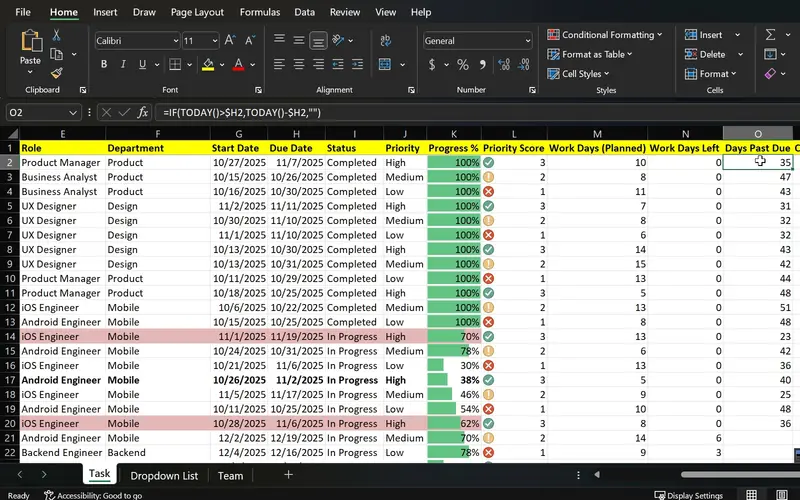
Project 07
TaskFlow
One sheet that shows what is done, what is late and what is urgent.
Adapt the tracker pattern to requests, invoices or a client's to-do list, choosing statuses from a drop-down, colouring overdue rows and calculating working days until each deadline.
-
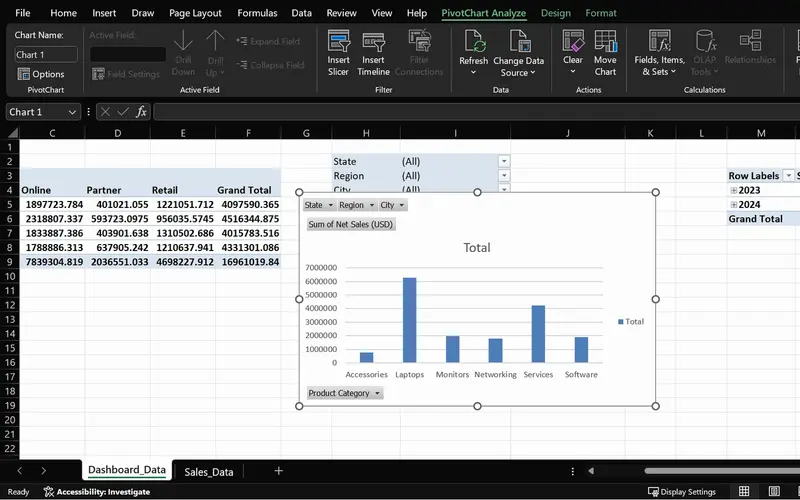
Project 05
SalesPlusPerformance
A sales question answered in seconds, straight from the order data.
Give a client who supplies raw exports a summary they can filter through a slicer. Refresh it as rows are added, without building the summary again.
-
Project 02
Dunder Michael Paper Company employee database
Practise weekly assistant list tasks on a long table, from sorting and filtering to removing extra spaces and duplicates, separating names, keeping headers frozen and preparing the printout.
-
Project 03
Sales Goal Tracker
Use sales targets to practise COUNTIFS, SUMIFS and IF, then apply those formulas to requests grouped by type, monthly spending totals and flags for rows needing attention.
Lessons
The lessons that matter, in course order.
The Complete Excel Course with AI Integration has 186 lessons. This page picks out 48 of them, 4 h 15 min of video. Each lesson keeps its number in the course.
Where to start
Lesson 19 Excel tables
If you can enter data and total a column, start with Lesson 19. For a first introduction to Excel, choose Lesson 1; the course goes on from there to the Excel window and creating a first spreadsheet. If you already maintain tidy tables, head to Lesson 36 to learn COUNTIF, SUMIF and their versions for multiple conditions. This path includes the whole of Managing data in Excel and begins there. That section and its practice files are free by email; request them on the course page.
48 of 186 lessons · 4 h 15 min
03 Managing data in Excel: sort, filter and tables (Dunder Michael Paper employee database) Bring order to contact, supplier and client lists with Excel Tables, sorting and filters. Clean entries with TRIM, Find and Replace and Remove Duplicates; separate names with Flash Fill and Text to Columns; then freeze header rows and adjust print settings for a tidy printout.
- 19 Start here Excel tables Create and format a table, structured references and total row 8 min
- 20 Sorting data in Excel Single and multi-level sort on an employee database 6 min
- 21 Filtering data in Excel AutoFilter, text and number filters on employee data 10 min
- 22 Cleaning data in Excel TRIM, Paste Special values and Find and Replace 13 min
- 23 Remove duplicates in Excel Find and delete duplicate rows in an employee list 6 min
- 24 Flash Fill in Excel Split first and last names automatically 3 min
- 25 Text to Columns in Excel Split data by delimiter into separate columns 6 min
- 26 Freeze panes in Excel Lock header rows and columns while scrolling 3 min
- 27 Printing in Excel Print area, page orientation, scaling and page layout 6 min
04 Essential formulas and functions (IF, SUMIF and more) Build the calculations used in admin reports: check list completeness with COUNTA, create flags with IF, AND and OR, and calculate category and monthly counts and totals with COUNTIFS and SUMIFS. TODAY, MONTH and date arithmetic support schedules. The practice uses sales data, and the methods also apply to request logs.
- 28 Logical functions in Excel TRUE and FALSE comparisons for beginners 5 min
- 29 The IF function in Excel Pass or fail results with a single condition 3 min
- 30 IF function practice in Excel Categorise sales data with IF formulas 6 min
- 31 Nested IF and IFS in Excel Customer value tiers with nested IF 6 min
- 32 Nested IF and IFS in Excel Sales performance labels with the IFS function 5 min
- 33 AND and OR with IF in Excel Flag high-value deals with multiple conditions 8 min
- 34 SUM, COUNT and COUNTA in Excel SUM with FILTER and counting numbers with COUNT 7 min
- 35 SUM, COUNT and COUNTA in Excel COUNTA, unique counts and completeness checks 4 min
- 36 SUMIF and COUNTIF in Excel Conditional sum and count with one criterion 8 min
- 37 SUMIFS and COUNTIFS in Excel Sum and count with multiple criteria 7 min
- 38 The Excel function library Insert Function dialog and Formula AutoComplete 5 min
- 39 Date and time functions in Excel TODAY, NOW, MONTH and date arithmetic 6 min
- 40 Excel Ninja Challenge COUNTIF, SUMIF, IF, COUNTIFS, SUMIFS and IFS practice 8 min
05 Text functions and data validation (enhancing data quality) Prepare letter and label details using CONCAT, TEXTJOIN, PROPER and SUBSTITUTE on names and addresses. Add drop-downs to keep incoming entries consistent with existing ones, then bring the work together on a messy employee list.
- 41 CONCAT, the & operator and TEXTJOIN in Excel Combine text from multiple cells 6 min
- 42 TRIM, UPPER, LOWER and PROPER in Excel Clean messy text and fix capitalisation 6 min
- 43 FIND, SEARCH and SUBSTITUTE in Excel Locate and replace text with formulas 5 min
- 44 Text to Columns wizard in Excel Split a column by a comma delimiter 4 min
- 45 Data validation in Excel Create drop-down lists for consistent data entry 4 min
- 46 Ninja Challenge: problem Clean messy data with text functions and validation 4 min
- 47 Ninja Challenge: solution PROPER, Text to Columns and drop-down lists 7 min
07 PivotTables and PivotCharts: data analysis made easy Summarise form responses or app exports each week with PivotTables, slicers and PivotCharts, refreshing the summary after rows are added. Sales orders provide the lesson examples; the approach also works for other lists containing a date and a category.
- 57 PivotTables 101 in Excel What a PivotTable does and the sales dataset 5 min
- 58 Preparing data for PivotTables Clean data with TRIM, PROPER, find and replace 5 min
- 59 Create your first PivotTable in Excel Insert a PivotTable from a sales table 1 min
- 60 PivotTable fields in Excel Rows, values, columns and Value Field Settings 2 min
- 61 PivotTable summaries in Excel Sales by product category and grouping by date 4 min
- 62 Slicers in Excel Filter PivotTables with clickable buttons 3 min
- 63 PivotCharts in Excel Create interactive charts from a PivotTable 5 min
- 64 PivotTable design Tab Report layouts, PivotTable styles and number formats 5 min
- 65 Refresh a PivotTable in Excel Update pivots when source data changes 2 min
- 66 Excel Ninja Challenge PivotTable sales by region, category and monthly trend 1 min
09 Project: task automation with data validation and forms Build TaskFlow with columns that also fit request and invoice logs. It combines status and priority drop-downs, highlighting for completed and overdue rows, a Gantt-style timeline and NETWORKDAYS with TODAY to calculate days remaining. Sheet protection prevents formulas being overwritten.
- 79 TaskFlow project tracker in Excel Overview of the task tracker dashboard 4 min
- 80 Designing a task tracker in Excel TaskFlow layout, columns and headers 5 min
- 81 Data validation in Excel Status and priority drop-down lists in TaskFlow 8 min
- 82 Conditional formatting in Excel Highlight overdue and completed tasks 8 min
- 83 Gantt chart in Excel Build a project timeline with conditional formatting 6 min
- 84 Data bars and icon sets in Excel Visual priority and progress in TaskFlow 6 min
- 85 NETWORKDAYS and TODAY in Excel Days remaining and task deadlines in TaskFlow 5 min
- 86 Protect a sheet and lock cells in Excel Secure the TaskFlow tracker workbook 4 min
- 87 Testing an Excel task tracker Stress test TaskFlow with sample data 3 min
Instructors
Who teaches it.

Instructor, Excel with AI
Virginia Thorn
Emmy Award winner. Teaches Excel with AI at Coding Liquids.
Questions
Asked before starting.
Which Excel course covers administrative assistant work?
The Complete Excel Course with AI Integration from Coding Liquids teaches skills used by administrative and virtual assistants: maintaining clean tables, using drop-downs, separating and combining names and addresses, calculating totals with COUNTIFS and SUMIFS, highlighting overdue requests in a tracker and summarising client exports with PivotTables. The selection here contains 48 lessons, taking 4 hours 15 minutes out of the course's 16 hours.
How can an administrative assistant keep contact and supplier lists tidy?
The employee database in The Complete Excel Course with AI Integration provides the practice for maintaining this kind of list. Use an Excel Table for sorting and filtering, then tidy existing entries with TRIM, PROPER, Find and Replace and Remove Duplicates. Drop-downs help subsequent rows follow the same entry conventions. These methods transfer from the lesson's employee list to contacts and suppliers.
Can I use Excel to manage requests and deadlines as an assistant?
Yes. TaskFlow in The Complete Excel Course with AI Integration brings together status and priority drop-downs, conditional formatting to colour completed and overdue rows, NETWORKDAYS and TODAY to count working days remaining, and sheet protection. The project tracks tasks, but its columns also suit logs of requests, invoices and orders.
Will this course teach me Word, Outlook or mail merge for administrative assistant work?
No. The Complete Excel Course with AI Integration teaches Excel, and does not teach Word, Outlook, mail merge, Google Sheets or typing speed. It covers preparing the list in Excel before using it elsewhere: Flash Fill to separate names, TEXTJOIN to combine address lines and duplicate removal to clean up rows.
Can a virtual assistant take these lessons using a Mac?
Yes. The Complete Excel Course with AI Integration supports Excel on Windows and Mac, and the lessons selected on this page can be followed on a Mac. Only the Power Pivot and Power Automate sections require Excel for Windows, and their lessons are not included on this page. What can be followed on a Mac includes the work relevant to clients: tidying pasted lists, creating drop-downs, using COUNTIFS and SUMIFS, tracking deadlines and building PivotTable summaries with slicers.
Excel with AI
See the whole course.
The Complete Excel Course with AI Integration: 16 hours of video in 186 lessons, built around 14 projects, with lifetime access, a Certificate of Completion and a 14-day money-back guarantee.
The same course
For another job, level or topic.
By job
Finance and accounting
- Accountants and finance teams
- Bookkeepers and accounts assistants
- FP&A and budget analysts
- Auditors and fraud examiners
- Payroll administrators
- Tax accountants and advisers
- Banking professionals
- Cost and management accountants
- Financial controllers
- Credit control and receivables teams
- Accounts payable teams
- Financial planners and advisers
- Credit analysts and loan officers
- Insurance underwriters
- Insurance claims handlers
- Reconciliation analysts
- Treasury analysts
- Medical billing and coding specialists
- Fund accountants
- Billing administrators
- AML and KYC analysts
- Actuarial analysts
- Insurance agents and brokers
HR and office administration
Operations and supply chain
- Operations and project managers
- Procurement and purchasing officers
- Logistics coordinators
- Inventory controllers and storekeepers
- Supply chain analysts
- Warehouse managers and supervisors
- PMO analysts
- Import and export coordinators
- Production planners
- Demand planners
- Fleet and transport managers
- Apparel merchandisers
Data and reporting
Sales, marketing and customer service
Business and management
Engineering, construction and manufacturing
- Quantity surveyors and estimators
- Civil and site engineers
- Quality managers and engineers
- Construction project managers
- Health and safety officers
- Document controllers
- Production managers and supervisors
- Mechanical and electrical engineers
- Industrial engineers
- Planning engineers
- Sustainability and ESG analysts
- Maintenance planners